Focus Mode: Calmer Typing Practice for ADHD, Dyslexia and Anxious Learners
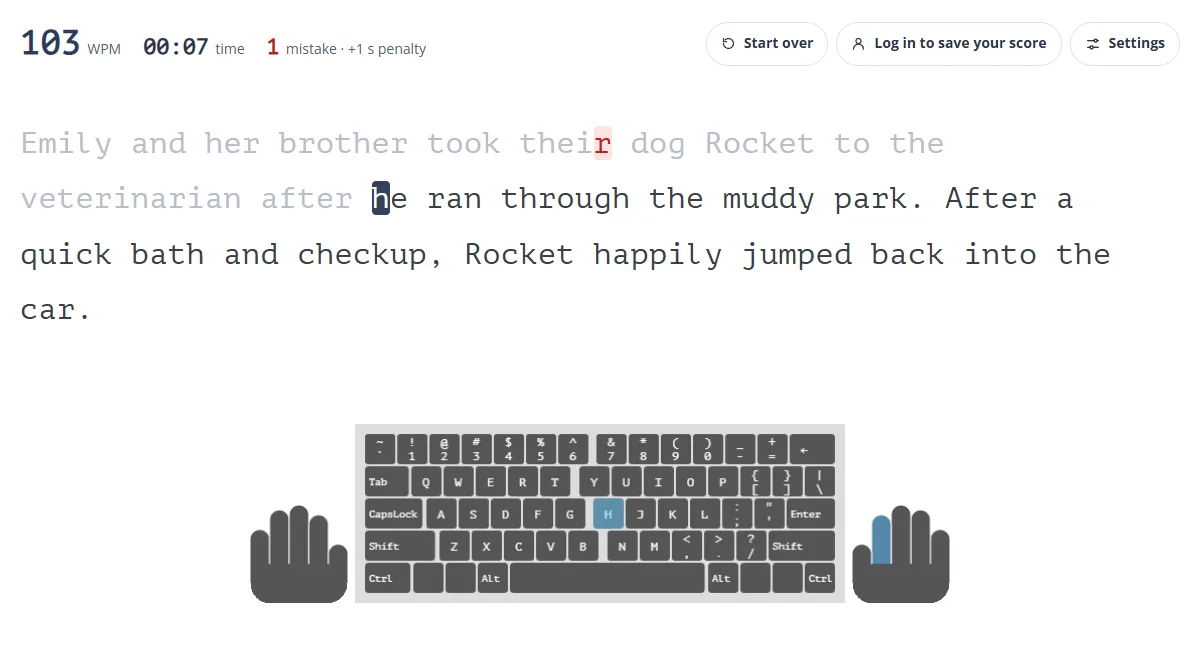
A typing exercise usually shows a lot at once: a clock that keeps running, a speed number that jumps up and down, a red mistake counter and a whole block of text waiting to be typed. For many learners that is motivating. For others it is the reason practice feels stressful, and they stop looking at the text to watch the numbers instead.
Focus mode is one switch that removes those distractions. You still type the same exercises and get the same score, you just see it at the end instead of during the exercise.
What focus mode changes
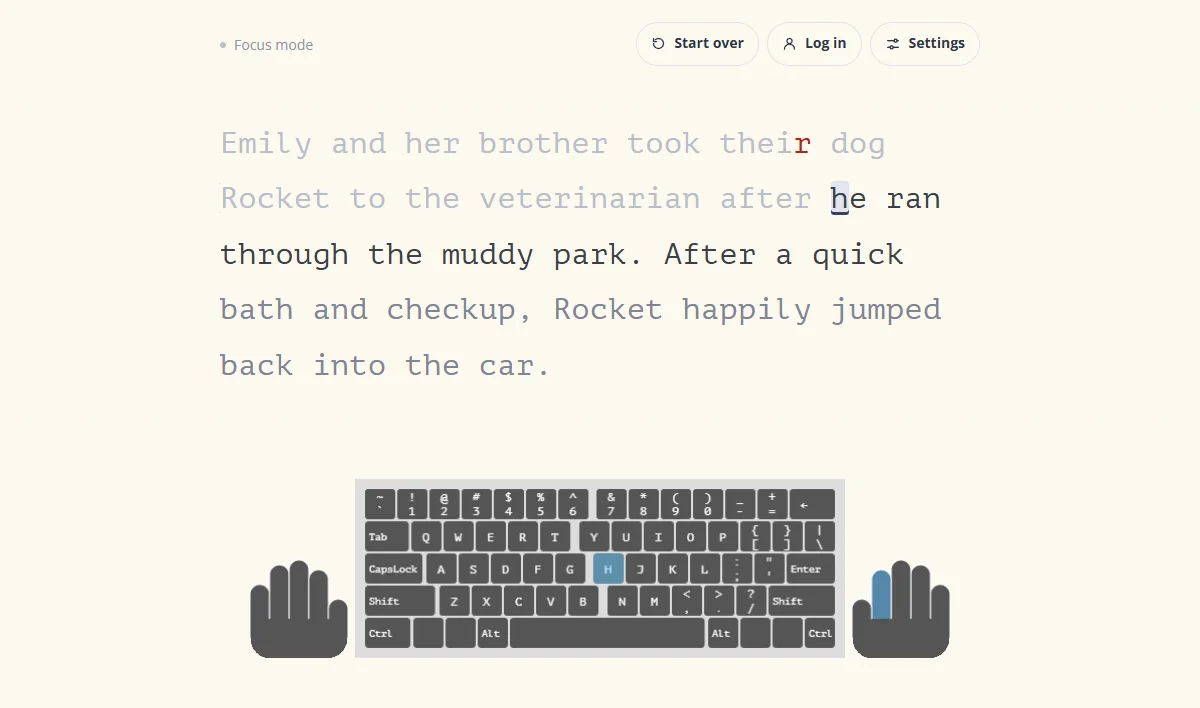
- No timer, speed or mistake counter. The bar above the text only says "Focus mode". There is nothing to glance at between keys.
- Gentler mistakes. A wrong letter is shown in red, without the bright highlight used in the standard view.
- Dimmed lines ahead. The line you are typing and the next one stay dark. Everything further down is greyed out, so the text does not look like a wall of letters.
- Cream instead of white. The page background turns warm cream, which many readers find easier on the eyes than bright white.
- A narrower column. Lines are shorter, so your eyes travel less from the end of one line to the start of the next.
Nothing changes in how the exercise is scored. When you finish, you see your speed, accuracy and time as usual, and the result counts toward your progress just like any other attempt.
Who it helps
Learners with ADHD
A number that changes with every keystroke is hard to ignore. Without it, attention stays on the next letter instead of on the score. Dimming the lines ahead also cuts down how much is competing for attention on the screen.
Learners with dyslexia or visual stress
Dense blocks of text, bright white backgrounds and long lines are common complaints from readers with dyslexia. Focus mode addresses all three: fewer lines in full contrast, a softer background and a shorter line length. It is not a treatment for dyslexia, but it removes a few of the things that make reading on screen tiring.
Anyone who tenses up under a clock
Some learners rush the moment they see a timer, make more mistakes and then get frustrated. Hiding the clock is a simple way to practice accuracy first. Speed usually follows once the finger movements become automatic, which is the same advice we give in how to type faster.
It is also useful for beginners in general. In the first weeks of touch typing, a low speed number says very little and can be discouraging. Many learners do better when they only look at the result after the exercise.
How to turn on focus mode
- Open any exercise, for example the first lesson in Training, or paste your own text in Custom text.
- Click Settings in the top right corner, above the text.
- Switch on Focus mode, the first option in the list. The page changes right away, and you can keep typing where you stopped.
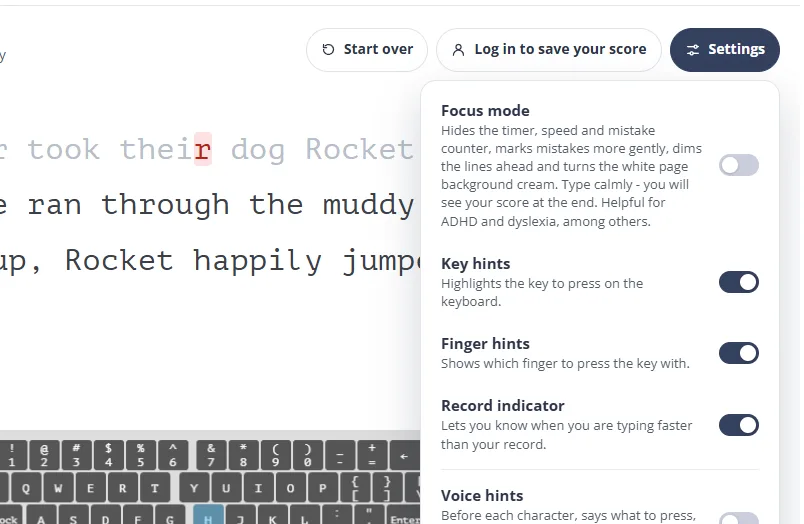
The setting is remembered on the device, so it stays on for the next exercises until you switch it off. It works without an account and on every plan. If a student uses a shared school computer, it is worth checking the setting at the start of each session.
Settings that go well with focus mode
The same Settings panel has a few other options worth knowing about:
- Key hints and finger hints show which key to press and which finger to use. Keep them on while learning a new row, and turn them off once the keys feel familiar. The finger placement guide explains the layout.
- Voice hints say each character before you type it, for example "capital D" or "space". They help learners with low vision and some learners who process spoken instructions more easily than written ones.
- No-errors mode restarts the exercise after any mistake. It is the opposite of a calm setup, so leave it off for anxious learners.
A simple first week with focus mode
If you want to try focus mode with a learner who gets stressed by typing tests, this plan keeps the first week short and predictable:
- Day 1: turn focus mode on together and type two or three short exercises from the Basics. Only talk about how it felt, not about the numbers.
- Days 2 to 4: 10 minutes a day. After each exercise, look at accuracy first. Aim for most exercises above 95% before moving on.
- Day 5: repeat an exercise from day 1 and compare the results. Seeing a better score on a familiar text is a strong motivator.
- End of the week: ask whether the learner wants to keep focus mode or try the standard view. Either answer is fine.
On TypingPlatform, results from focus mode count toward progress like any other attempt, so a teacher or therapist following a class or a caseload sees the same speed and accuracy data either way.
Tips for parents, teachers and therapists
- Offer focus mode as a choice, not a label. Some students prefer to see their speed, and that is fine too.
- Keep sessions short: 10 to 15 minutes of calm practice beats a long session that ends in frustration.
- Talk about the result after the exercise, and start with accuracy before speed.
- For students who struggle with handwriting, see typing and dysgraphia for a step-by-step plan.